Create a new form
Introduction
The React Form Engine (RFE) form builder platform simplifies and partially automates the process of generating user interface forms in OpenMRS frontends.
Links and ideas that are important to this text:
- Getting started - https://ohri-docs-chi.vercel.app/docs/create-new-form (opens in a new tab)
- Core concepts - https://ohri-docs-chi.vercel.app/docs/core-concepts/forms (opens in a new tab)
- Validating fields -https://ohri-docs-chi.vercel.app/docs/validation (opens in a new tab)
- Field types - https://ohri-docs-chi.vercel.app/docs/field-types-reference (opens in a new tab)
- Developer Guide - https://ohri-docs-chi.vercel.app/docs/developer-guide/contributing-guide (opens in a new tab)
What is the RFE form builder?
The RFE form builder is found at the following addresses:
- OHRI: https://ohri-dev.globalhealthapp.net/openmrs/spa/form-builder (opens in a new tab)
- Reference Application: https://dev3.openmrs.org/openmrs/spa/form-builder (opens in a new tab)
The RFE form builder is an automation tool/website for auto-generating form schema JSON files which can be later loaded into the Form Engine to auto-create micro-frontend user interface forms.
This means the UI/UX developer does not have to manually create the user interface forms. And any technical/or non-technical person can use the form builder to generate these form JSON files.
How to use the RFE Form Builder
Requirements:
- Make sure the Google Chrome browse is installed. Any other browser can also be used.

In the address bar, enter the form builder URL: OHRI https://ohri-dev.globalhealthapp.net/openmrs/spa/login (opens in a new tab) or RefApp https://dev3.openmrs.org/openmrs/spa/form-builder (opens in a new tab)
The main login form will open:
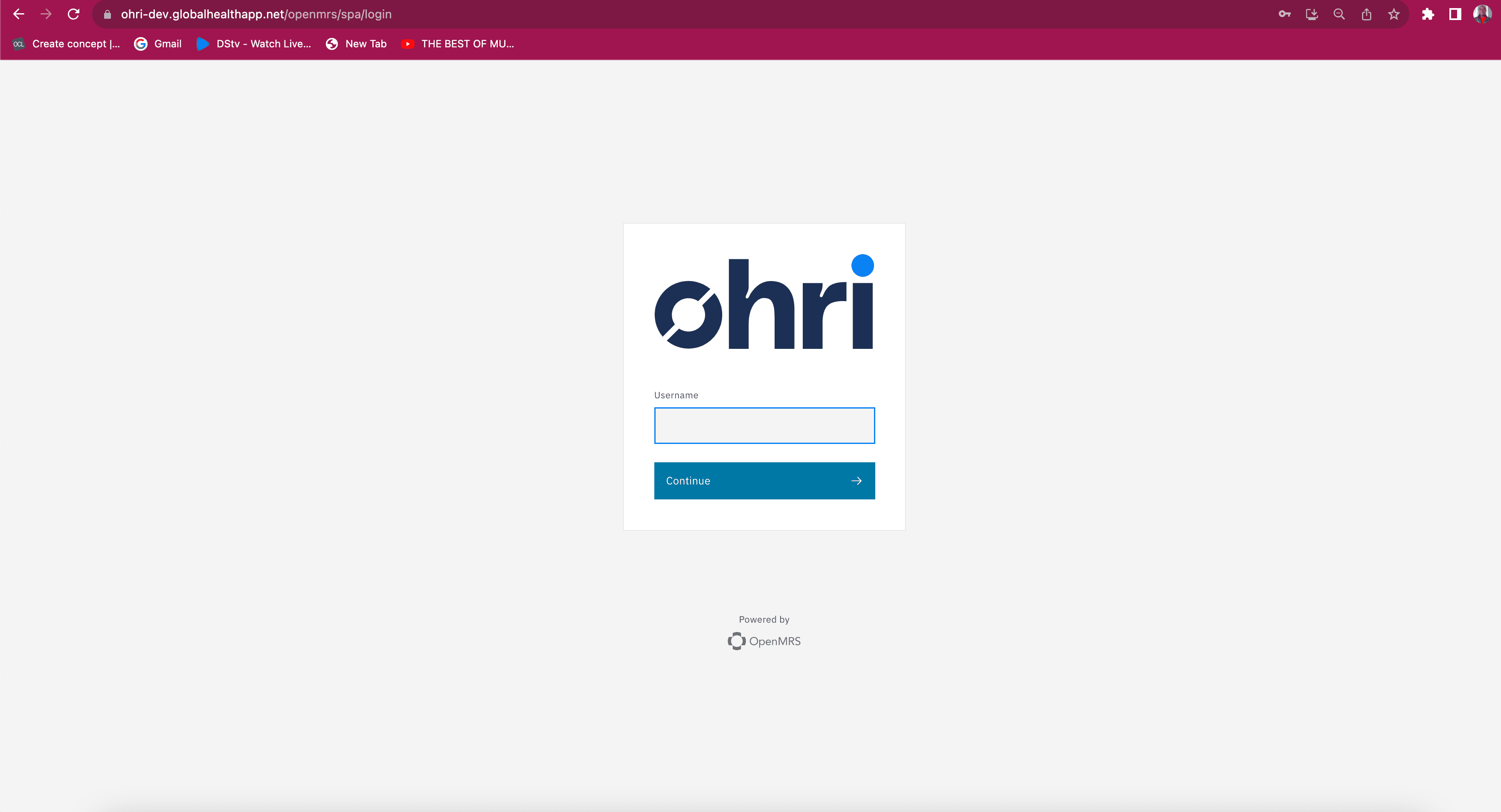
After the login form is loaded, enter all the required details in the inputs:
- OpenMRS server URL: This is the OpenMRS backend server installation where your concepts are stored.
- Username: Use the default i.e.
admin - Password: Use the default i.e.
Admin123
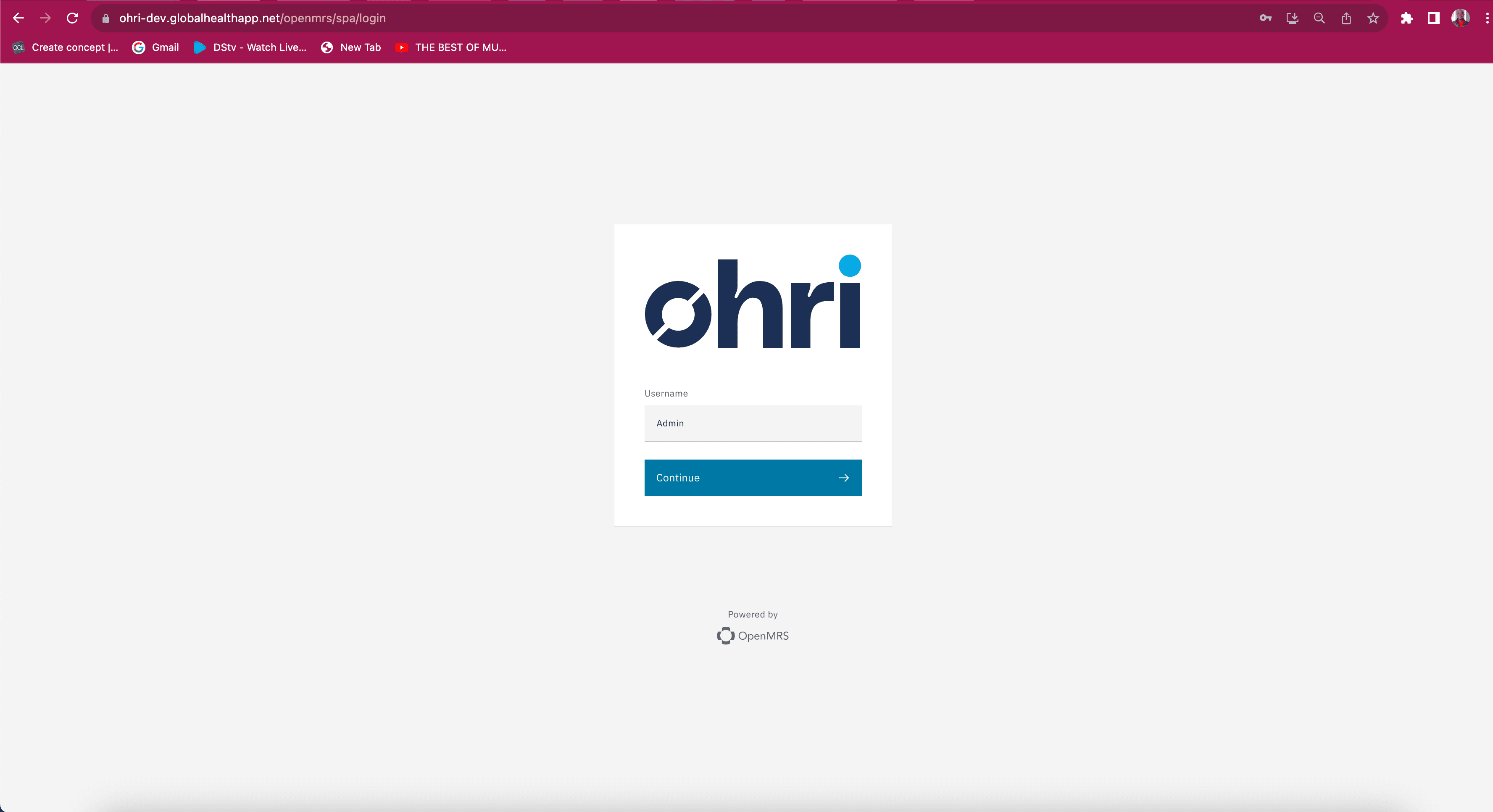
With the correct details entered above, the platform will log you in. You will land on the dashboard illustrated below:
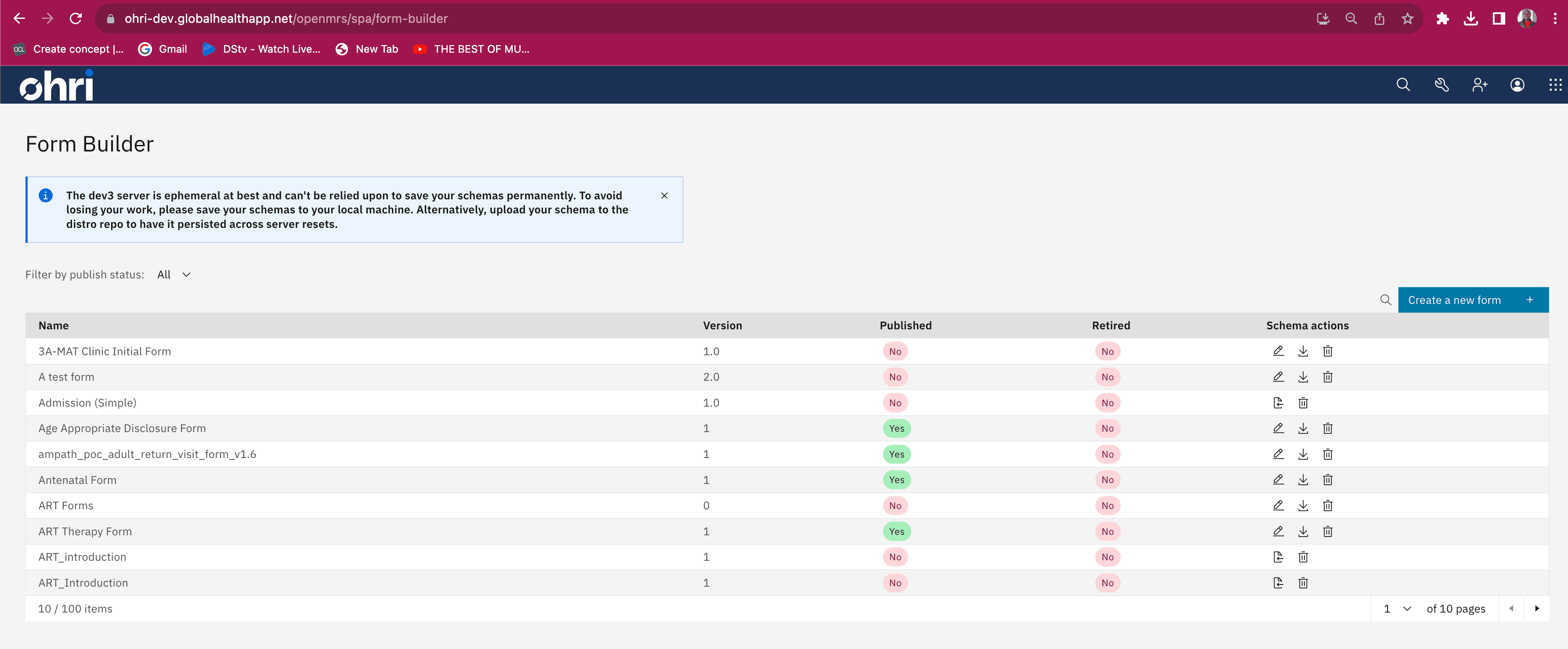
Now, click on Create New Form in the top left corner to create a new Form schema.

Clicking the button will land you in the interface shown below. Note the preveiw and the Interactive Builder tabs.
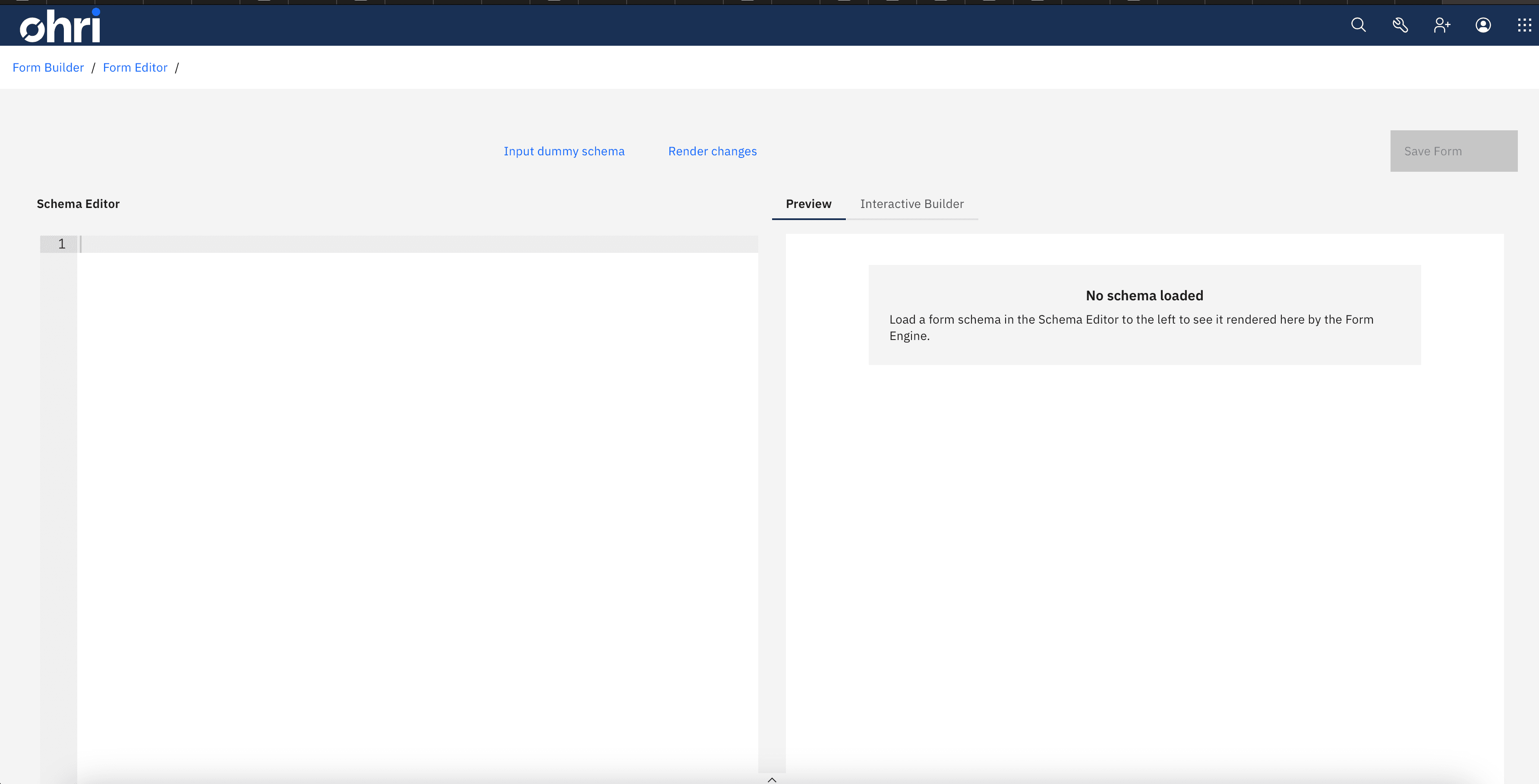
Click on the Interactive Builder tab to open the builder page shown below:
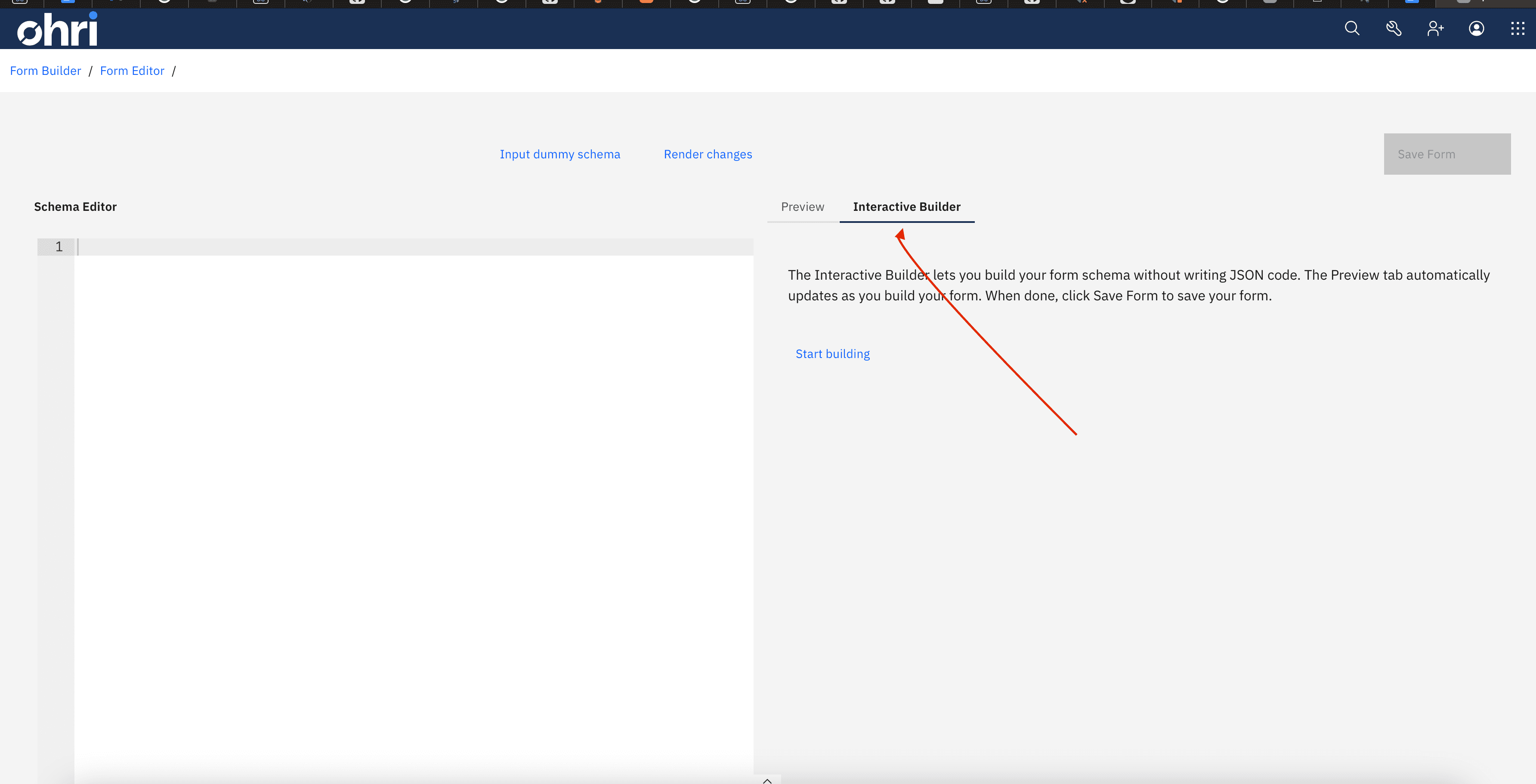
Click on the Start building text link. and a popup window asking for the form details will show as below:
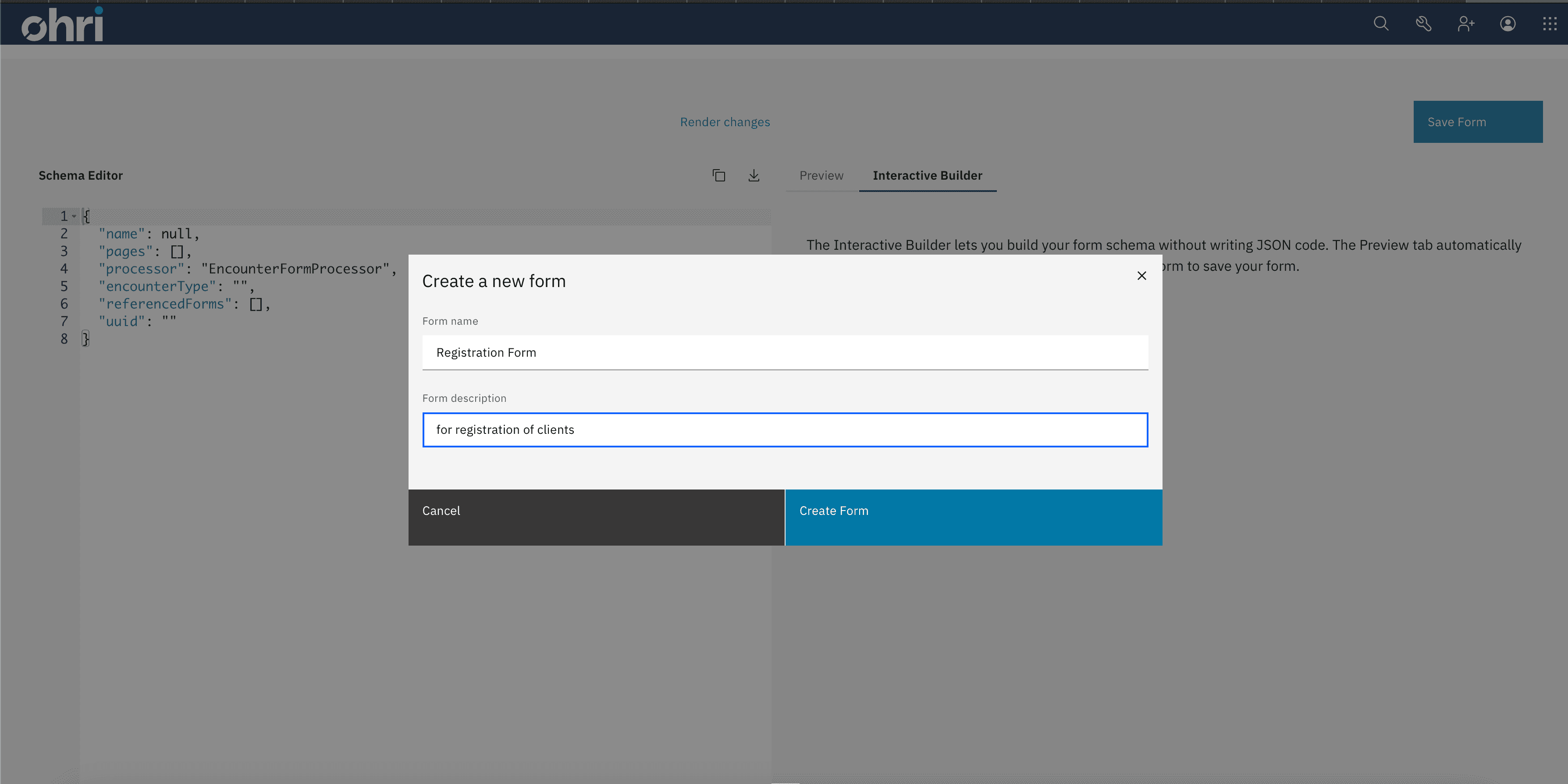
Click on the add page text link below to add a page to your form
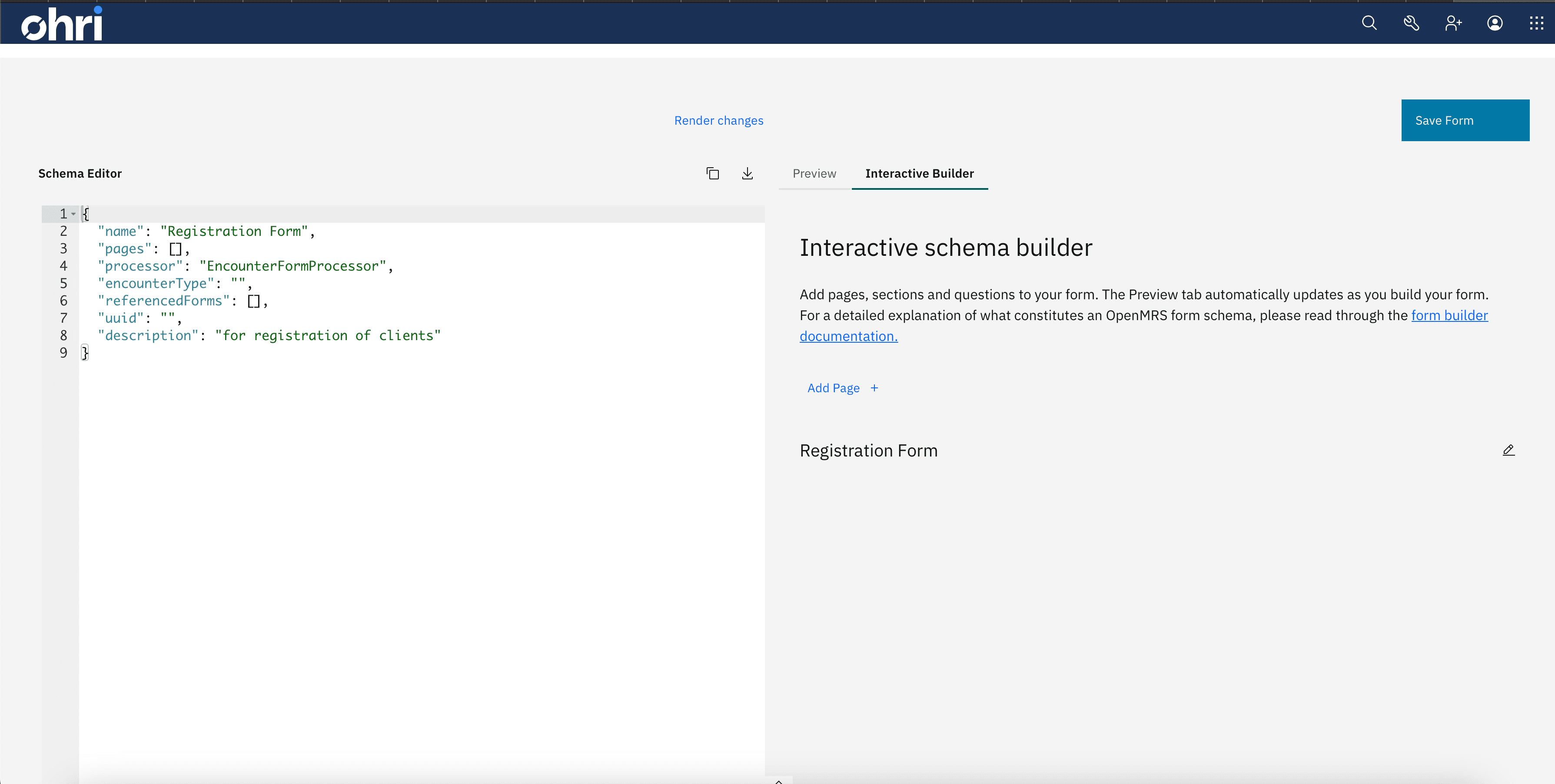
Add the page name in the pop up text box.
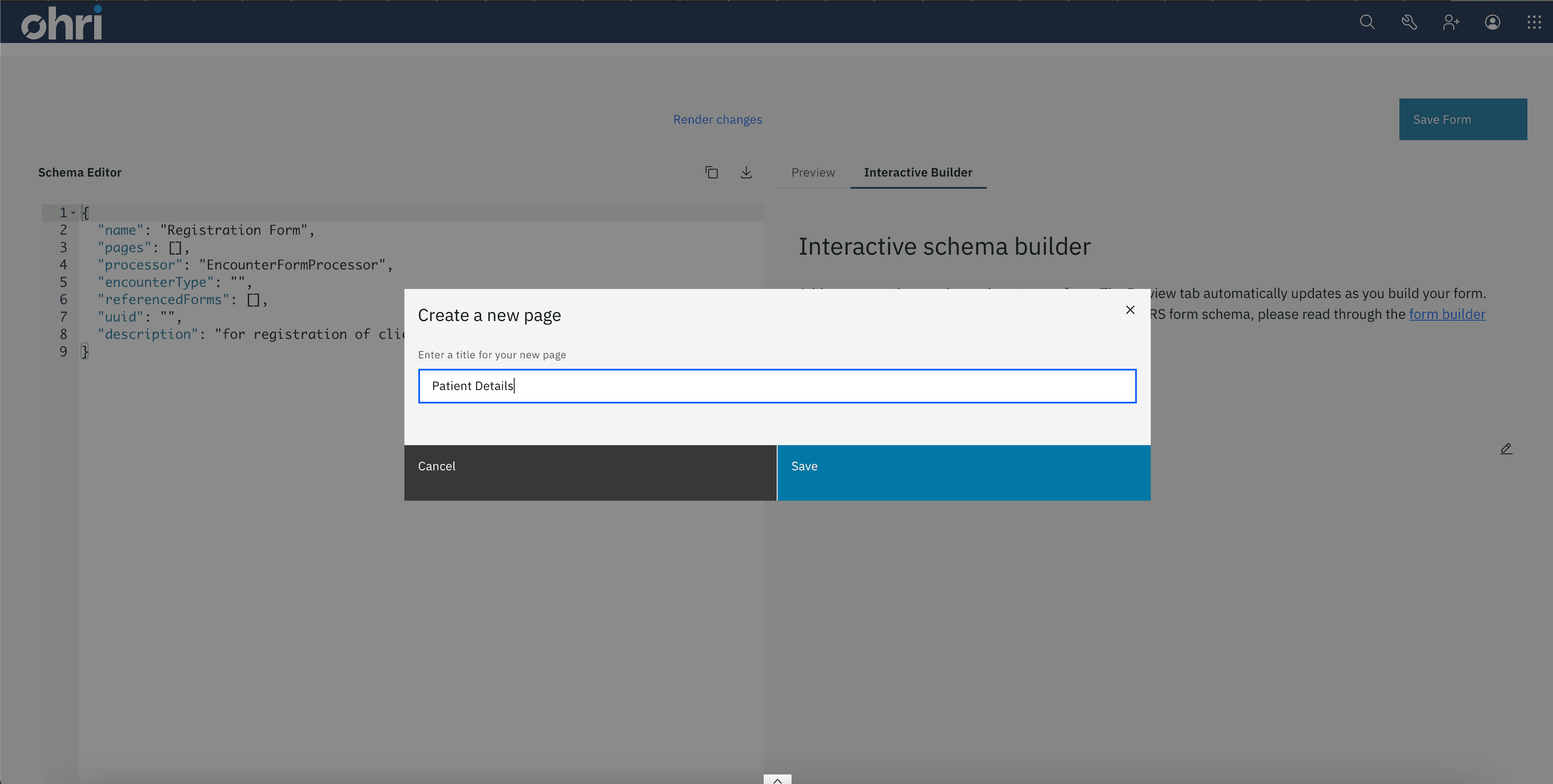
Click on the Save button to successfully save the page and proceed.
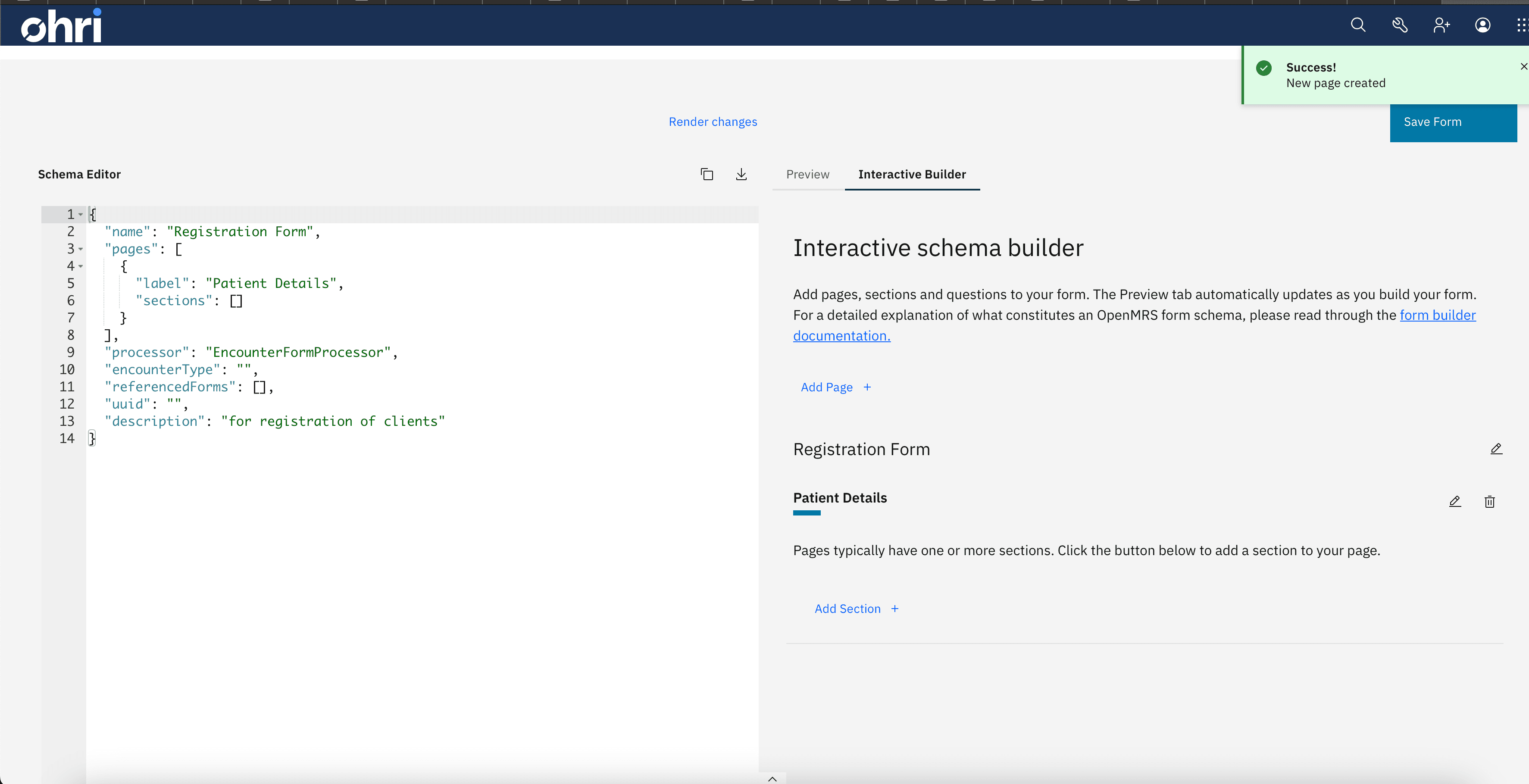
Next, click on the Add section text link to add a section to your form.
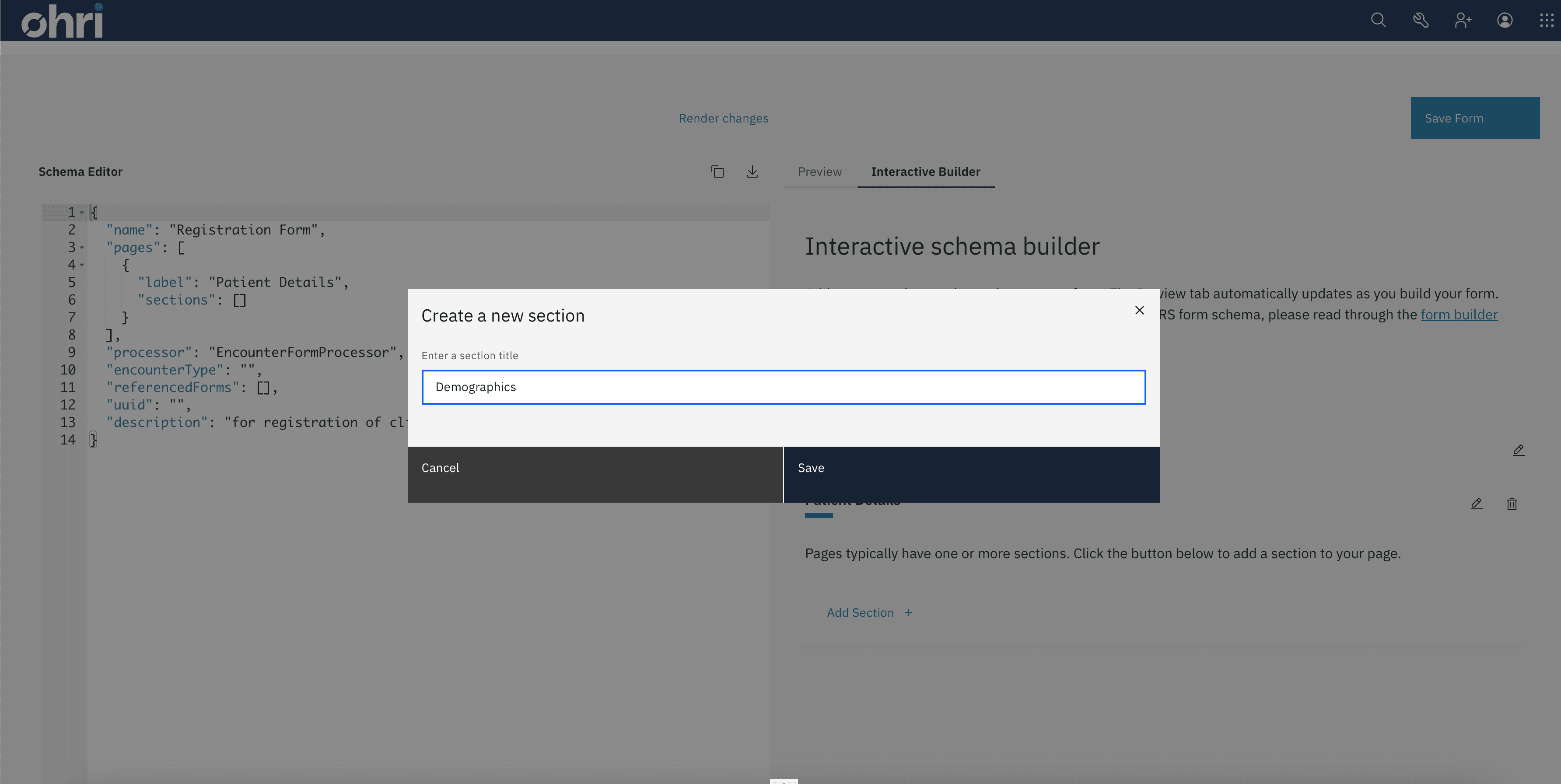
Click save to save the section added to form.
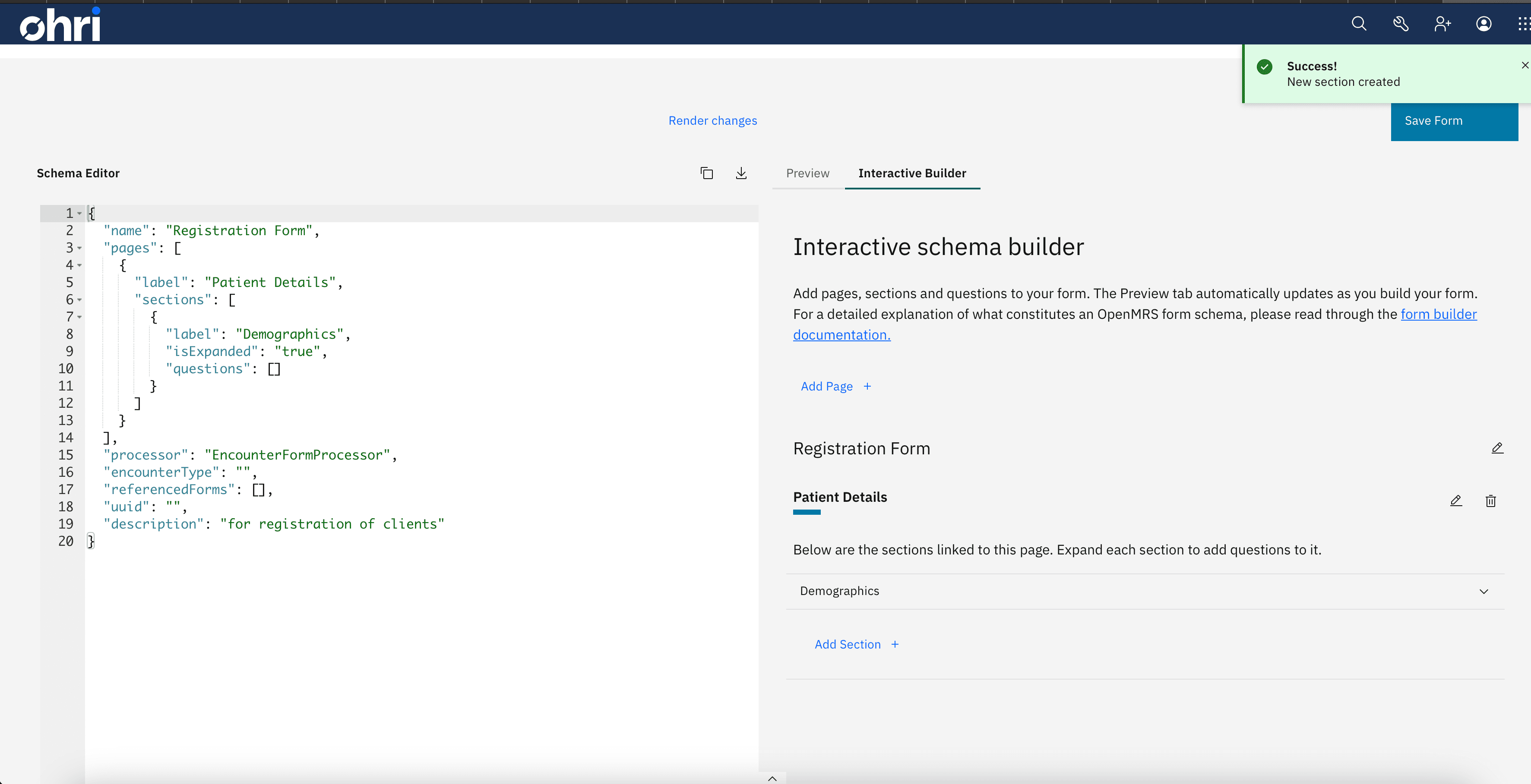
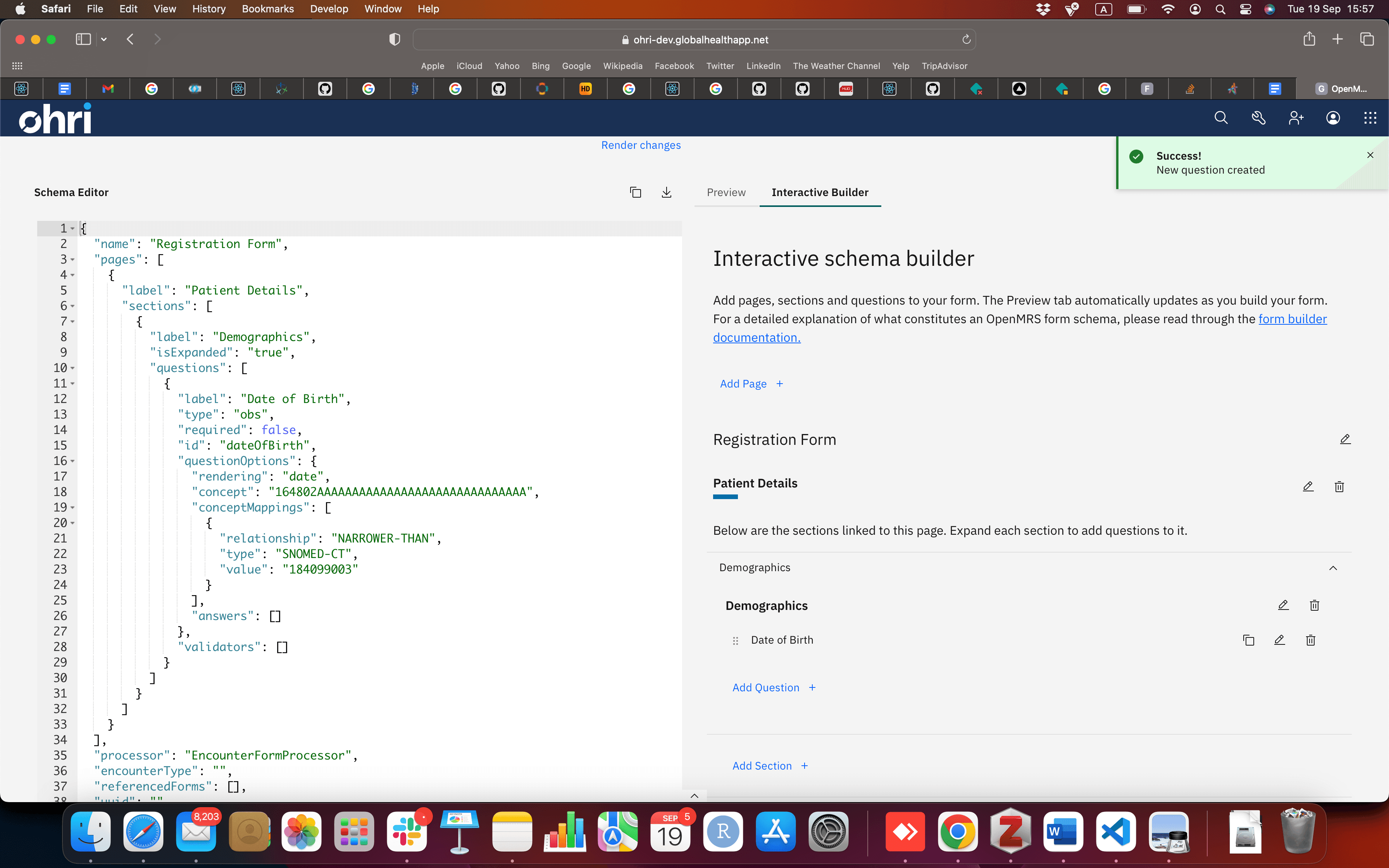
Click on Add question text link to add a question to your form. A question has several metadata which you must add on the popup form entry. These include:
LabelQuestion ID: Must be uniqueQuestion typeField TypeBacking ConceptMappings: Auto generate from concept selected
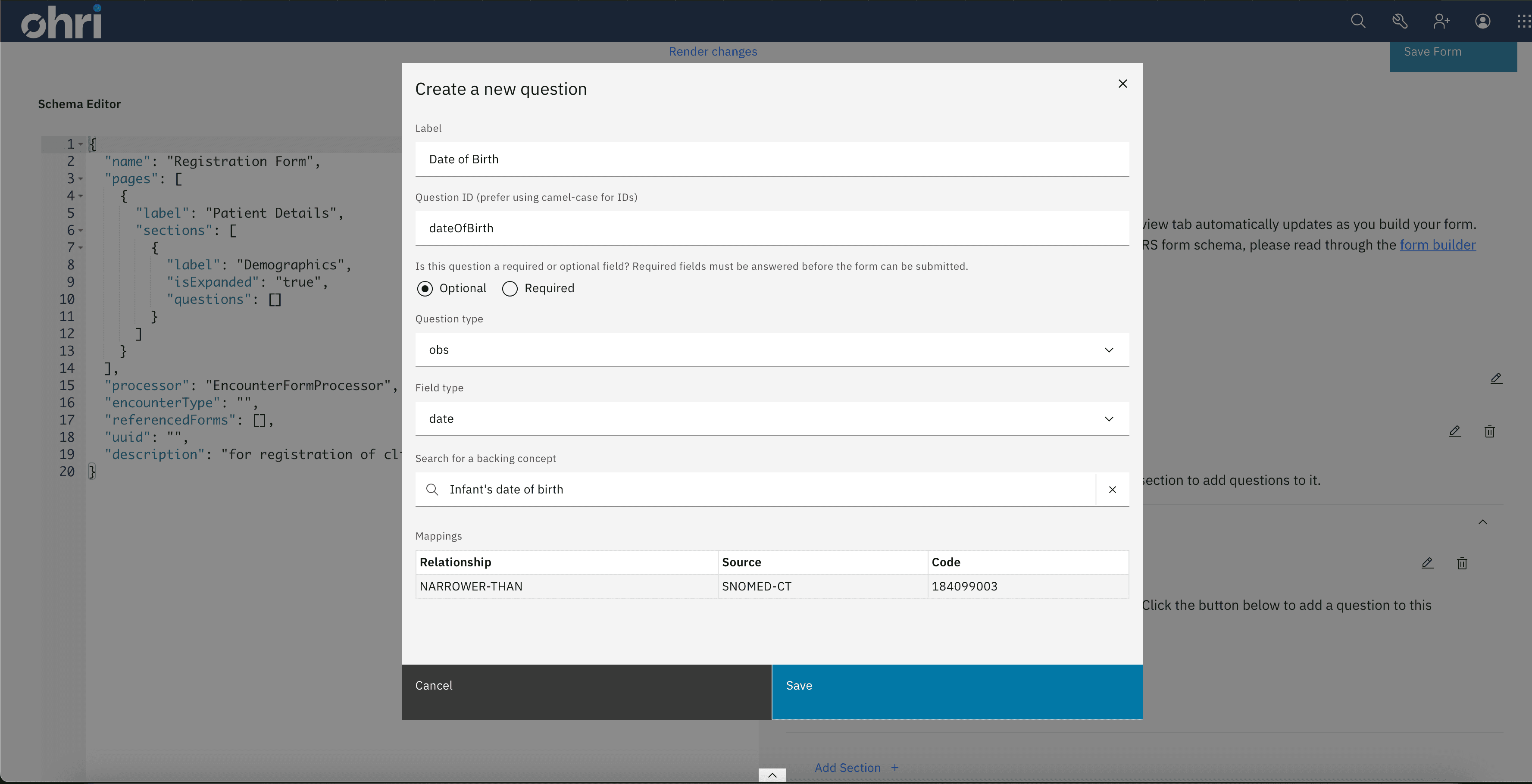
Click Save to save the question
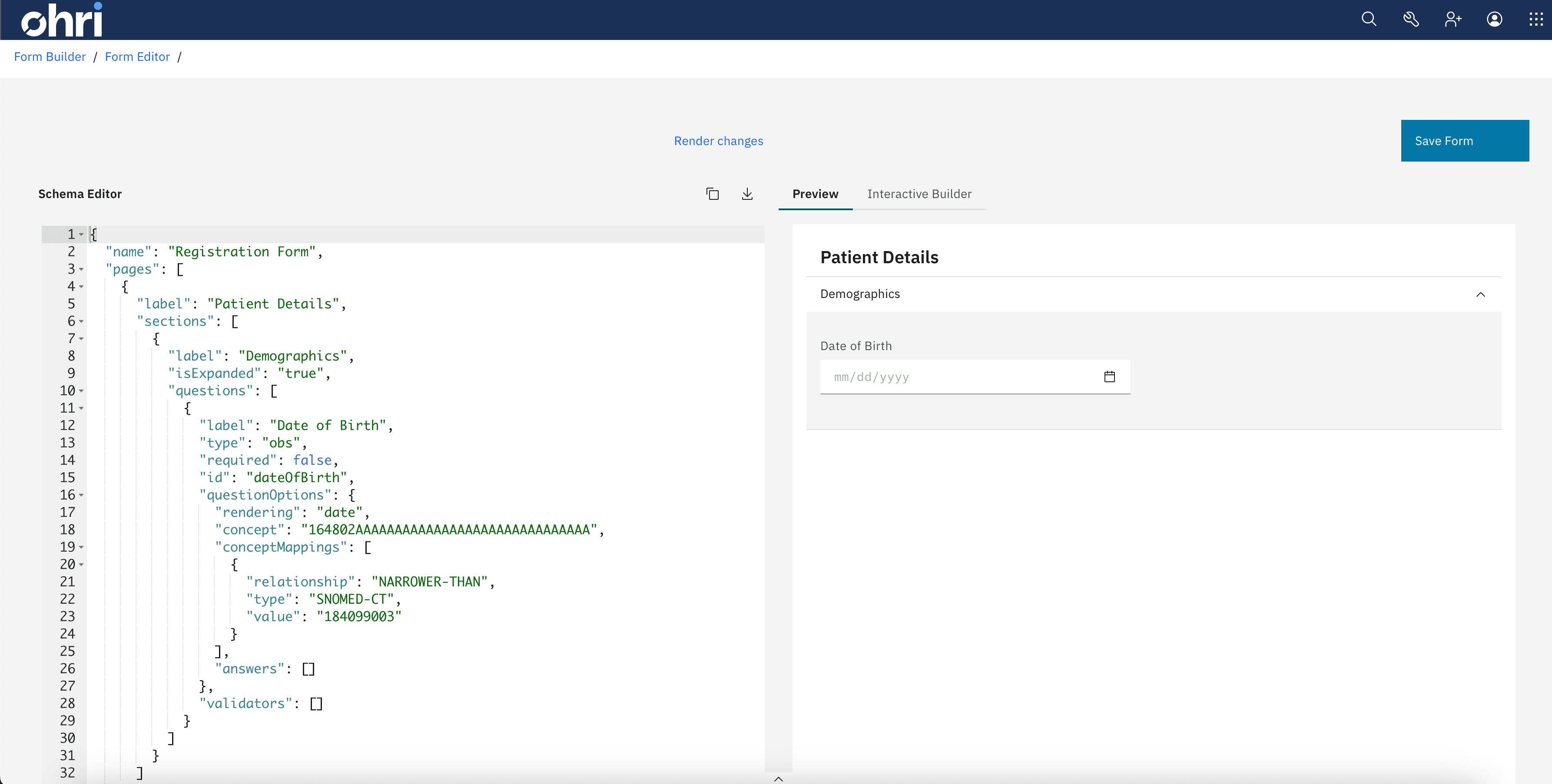
Click on Preview Form tab to view how the form will look like when rendered.
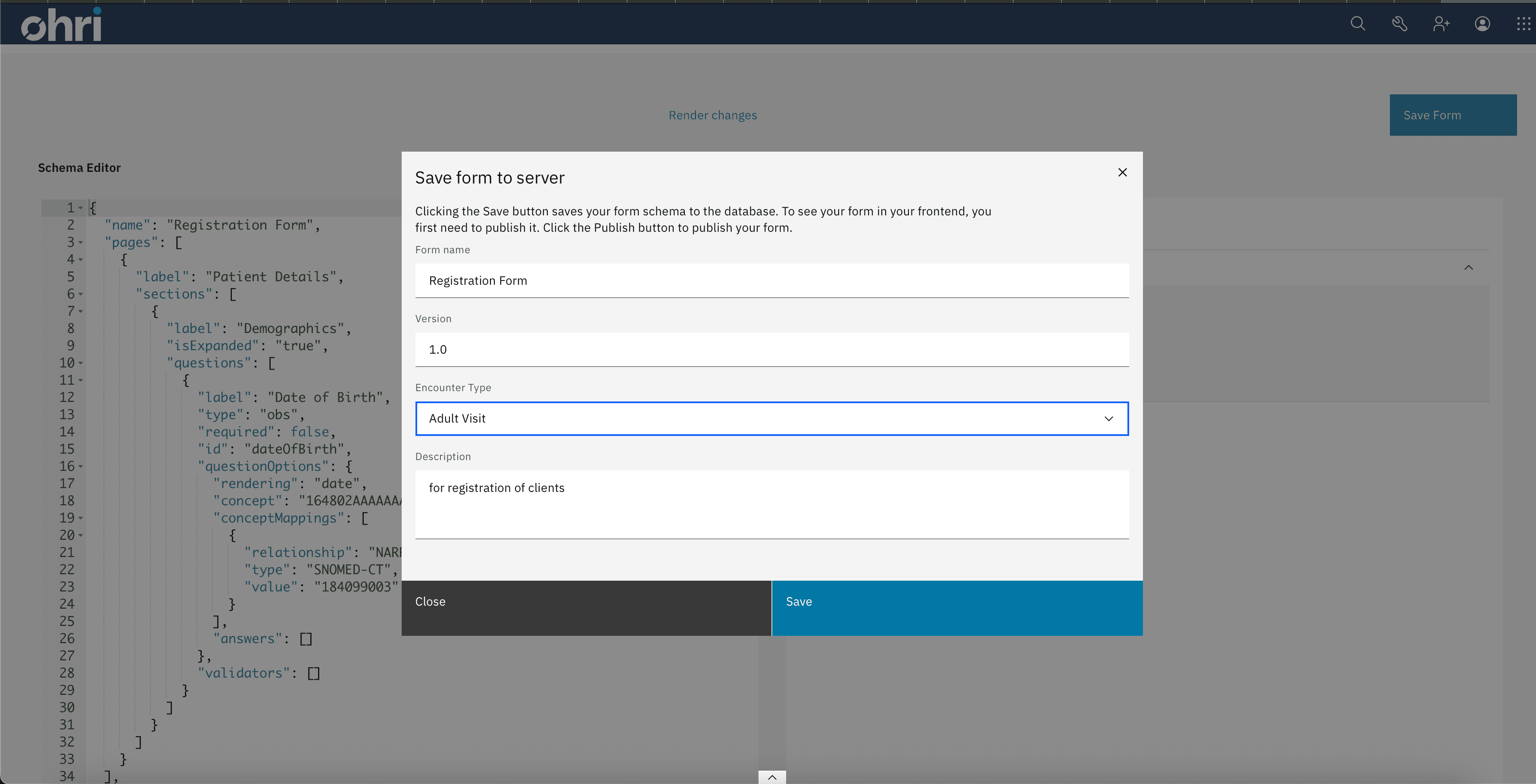
Click on the Save to save your final form. A popup form entry will appear to allow you enter details that include:
Form nameVersionEncounter TypeDescription
Finally, the form is ready for adding to the backend for rendering.